Module guide: Production Profiles
Where to find it, and who may use it
In the menu
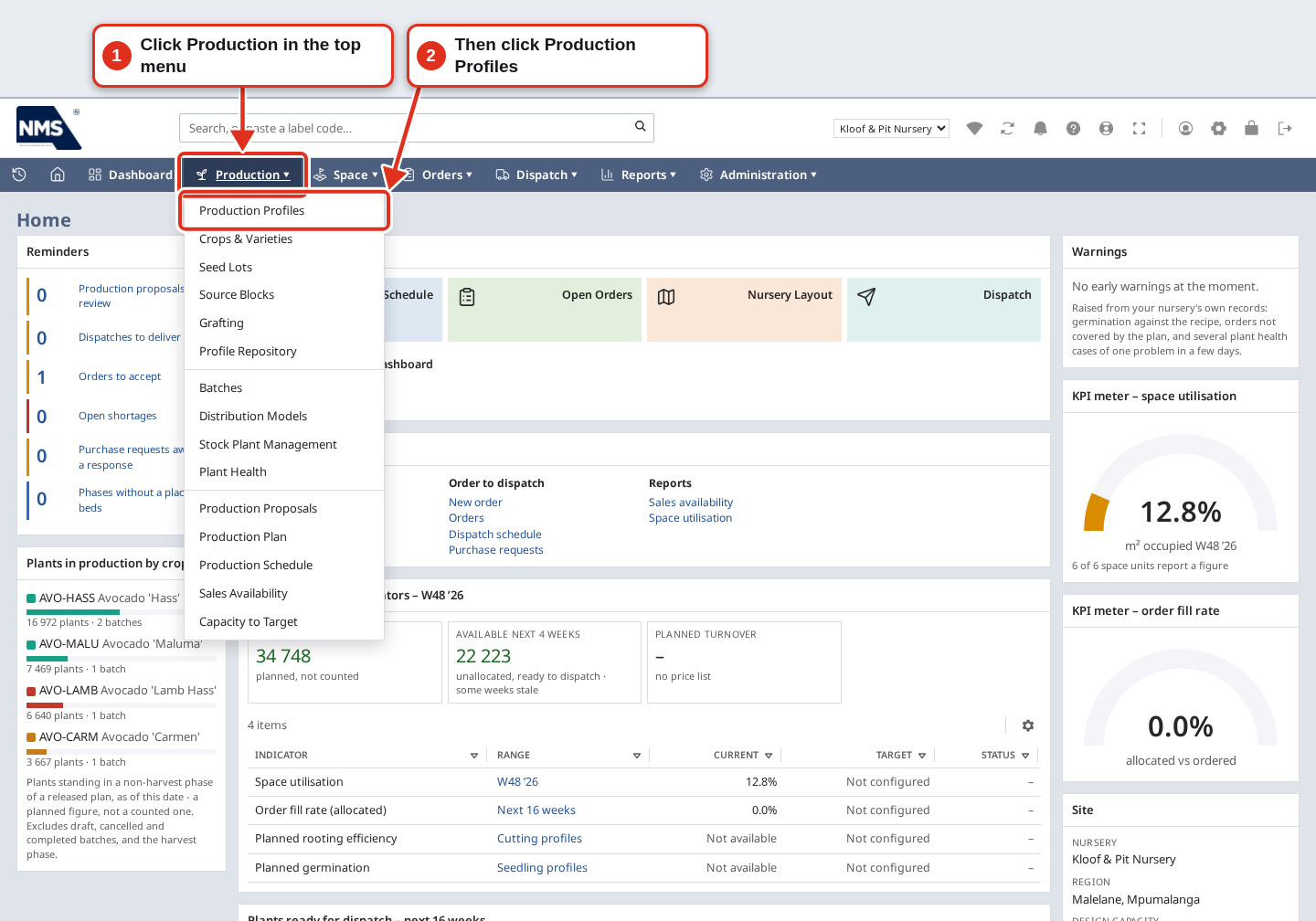
Production, then Production Profiles
- 1Click Production in the dark top menu.
- 2Click Production Profiles, the first item in the list.
The same menu also holds Crops & Varieties (the crops a profile is made for), Grafting (combinations and recipe templates), and Batches (where profiles get used).
Who may do what
Two permissions decide this. The read permission lets you see profiles and open every tab. The write permission lets you create a profile, copy it, unlock it for editing, change a draft and make it Active. In the example nursery (Kloof & Pit Nursery):
| Role (example person) | See profiles | Create, edit, Make Active |
|---|---|---|
| Nursery Manager (H. van der Merwe) | Yes | Yes |
| Assistant Nursery Manager (A. Botha) | Yes | Yes |
| Administrator (S. Joubert) | Yes | Yes |
| Divisional Nurseries Manager (C. Steyn) | Yes | No: read only |
| Supervisors and Assistant Supervisors | Yes | No: read only |
| External customers | No | No |
Your nursery's administrator can change these roles under Administration. Here is what a person with read-only access sees:
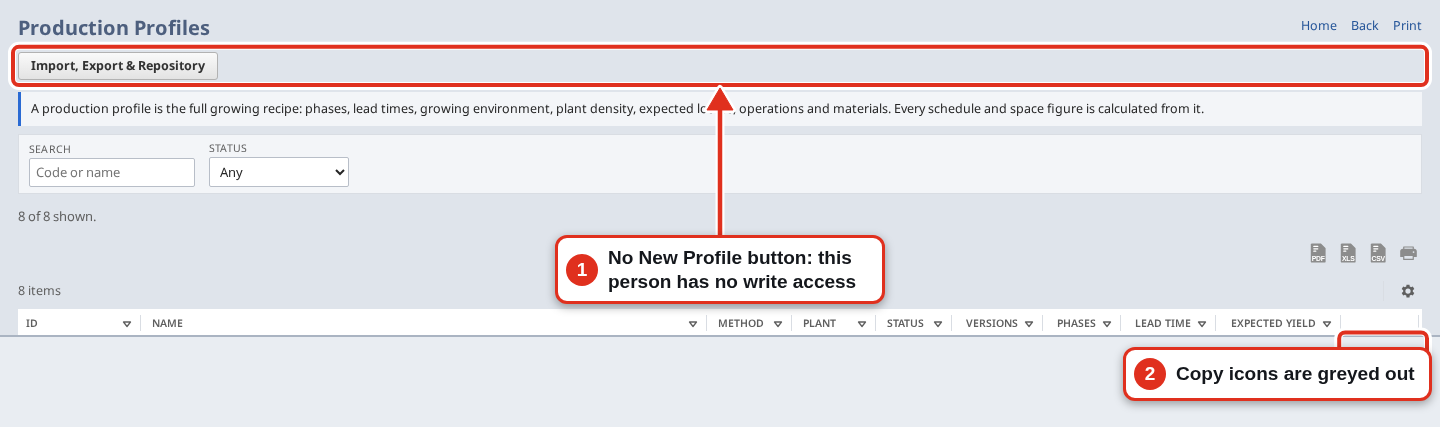
The list for a read-only person
- 1There is no New Profile button. Import, Export & Repository is still there.
- 2The copy icon is greyed out. The pencil still opens the profile so it can be read.
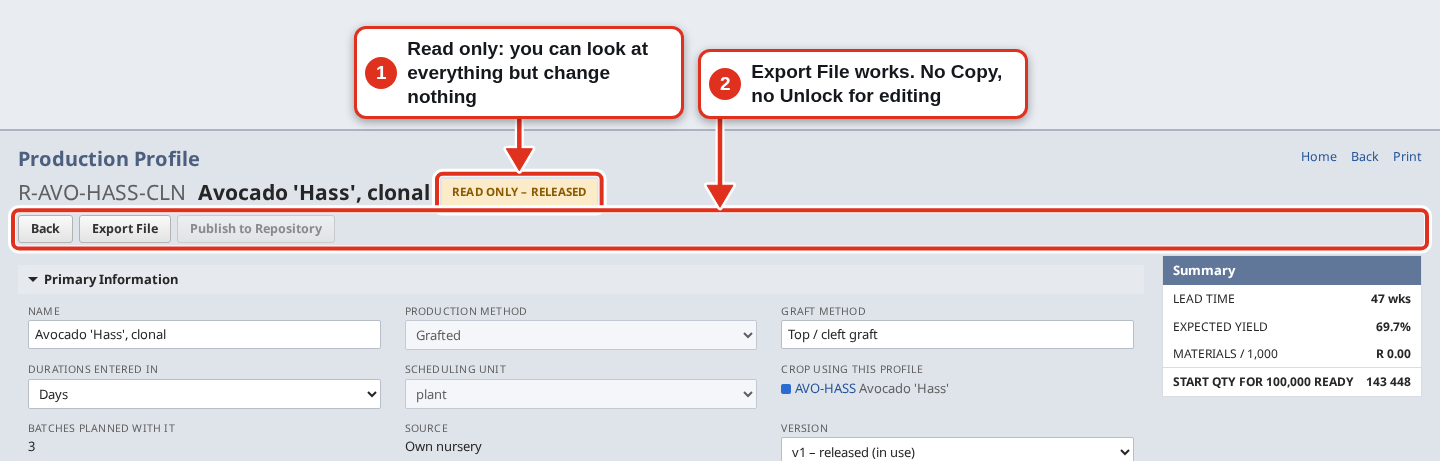
A profile record for a read-only person
- 1The badge says Read only – released. You can read every tab but change nothing.
- 2Export File still works. There is no Copy and no Unlock for editing.
Restricted recipes. A version can be marked Restricted (see Primary Information). People who are not allowed to read restricted recipes cannot open that profile at all.
OperoNMS demo guide. Every name, code and figure in the pictures is invented for training.