Module guide: Production Profiles
Step 6 · Make Active
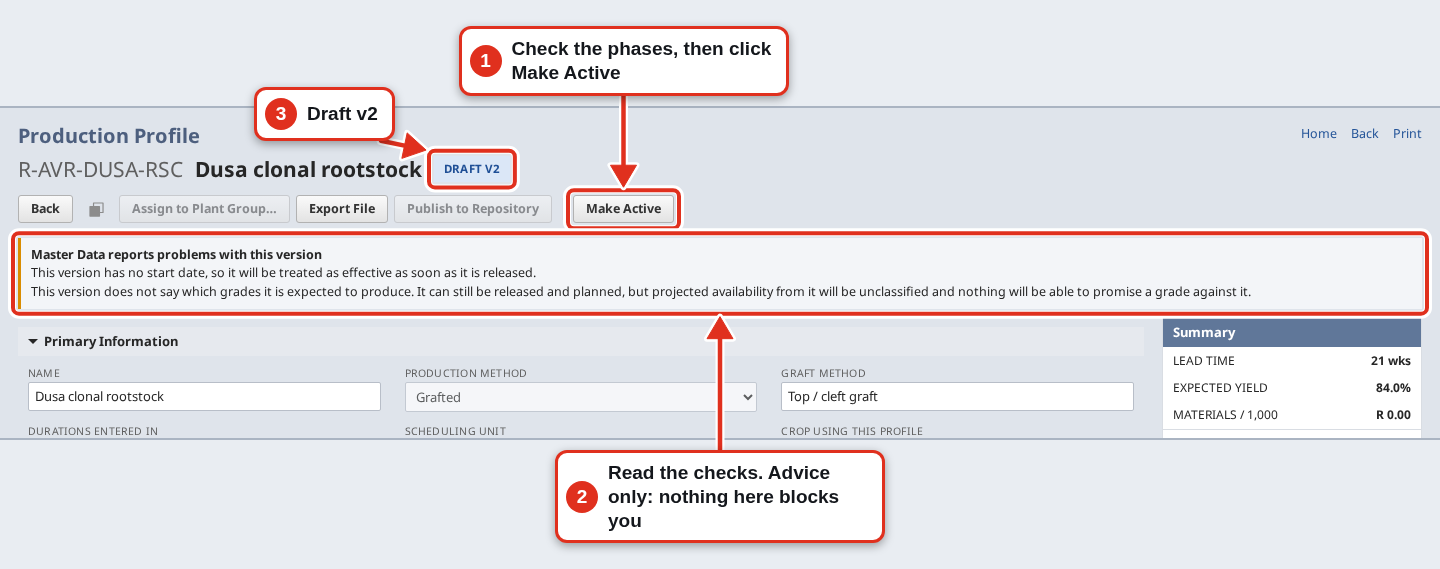
Ready to go live
- 1Check the phases, then click Make Active.
- 2Read the checks. Orange lines are advice (for example “no start date”, “no grade mix”). They do not stop you. Red lines are errors and Make Active is refused until you fix them.
- 3The badge still says Draft v2.
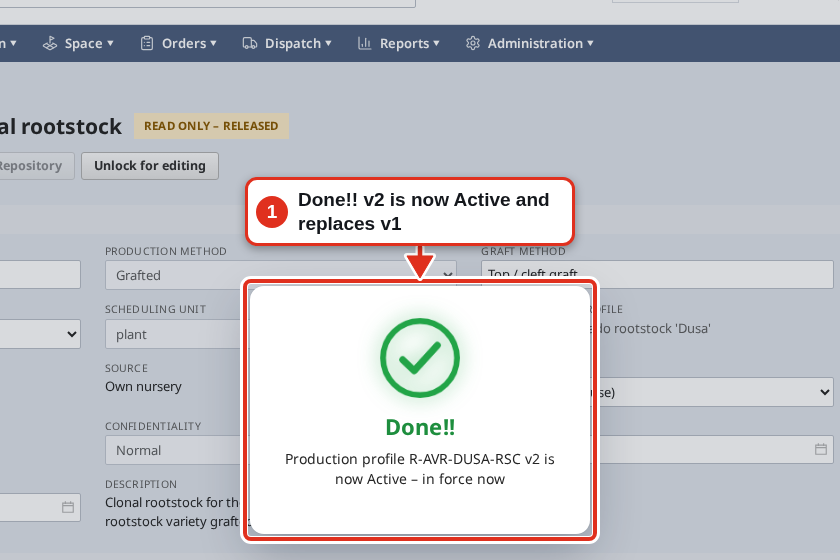
Done!!
- 1v2 is Active. It replaces v1 for every new plan.
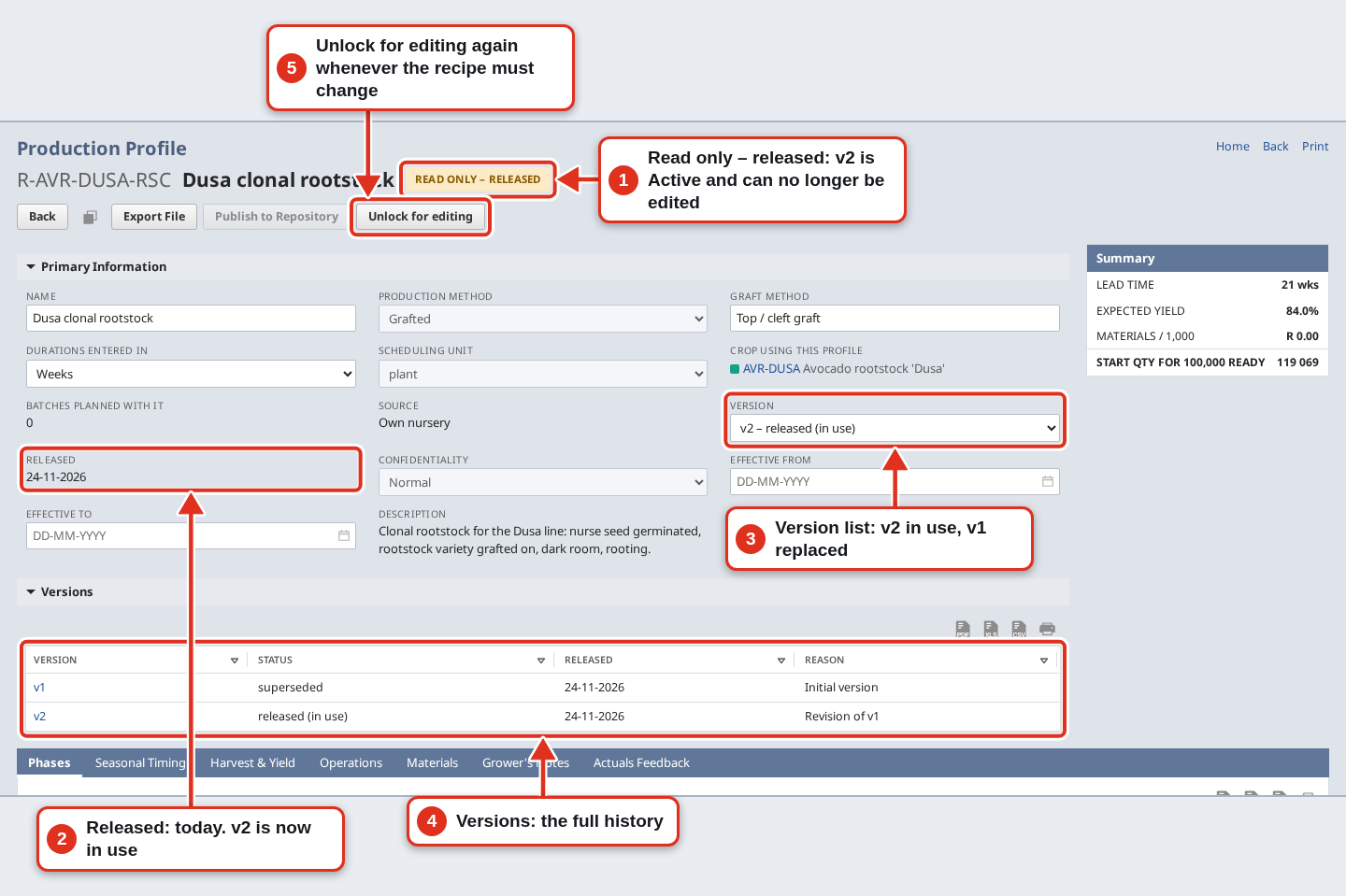
After Make Active
- 1Read only – released: v2 is Active and can no longer be edited.
- 2Released: today's date.
- 3Version: v2 is in use. v1 is kept but replaced.
- 4Versions: the full history, with the reason for each change.
- 5Click Unlock for editing again whenever the recipe must change.
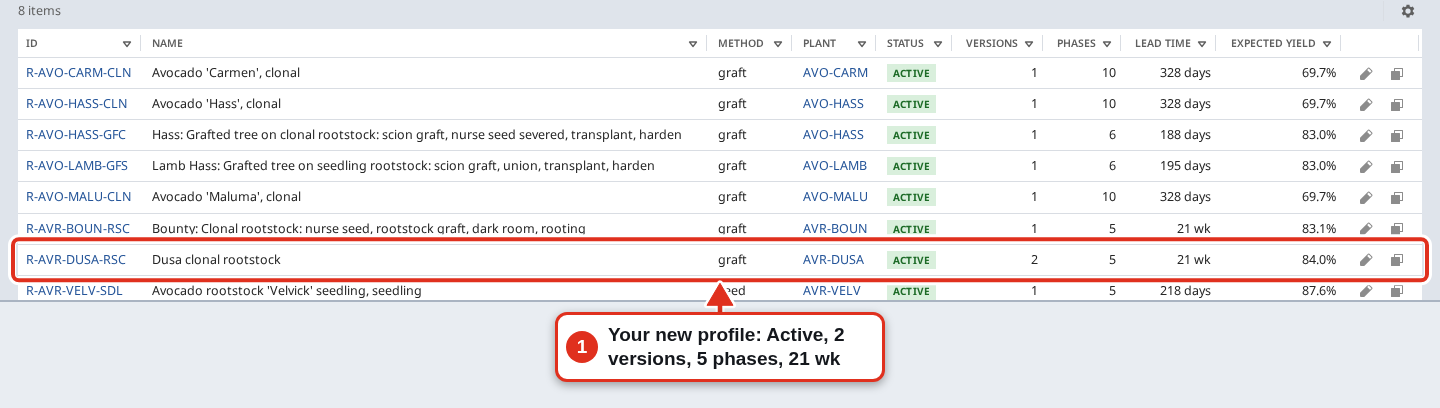
Back on the list
- 1The new profile is Active, has 2 versions, 5 phases and 21 weeks lead time.
Rules for Make Active
Errors that block it include: no phases; a growing environment that does not exist; a seasonal change that would make a phase shorter than one day; more than one Harvest phase; a Harvest phase with no yield model; expected grade shares that do not add up to 100%; a quality check that needs a unit and has none; an effective end date before the start. The red notice at the top lists each one in plain words, with the phase number.
OperoNMS demo guide. Every name, code and figure in the pictures is invented for training.