Other ways: templates and copying
Start from a built-in template
Under Production → Grafting → Recipe templates you can load a ready-made recipe for a crop. It makes a draft with the phases, durations and the best-fitting container, which you then edit and make Active. Two templates exist: Avocado, clonal (10 phases, about 47 weeks) and Avocado, seedling (5 phases). A template can be loaded once per crop; once loaded, the page says “Already loaded for this plant. Edit that recipe under Production.”
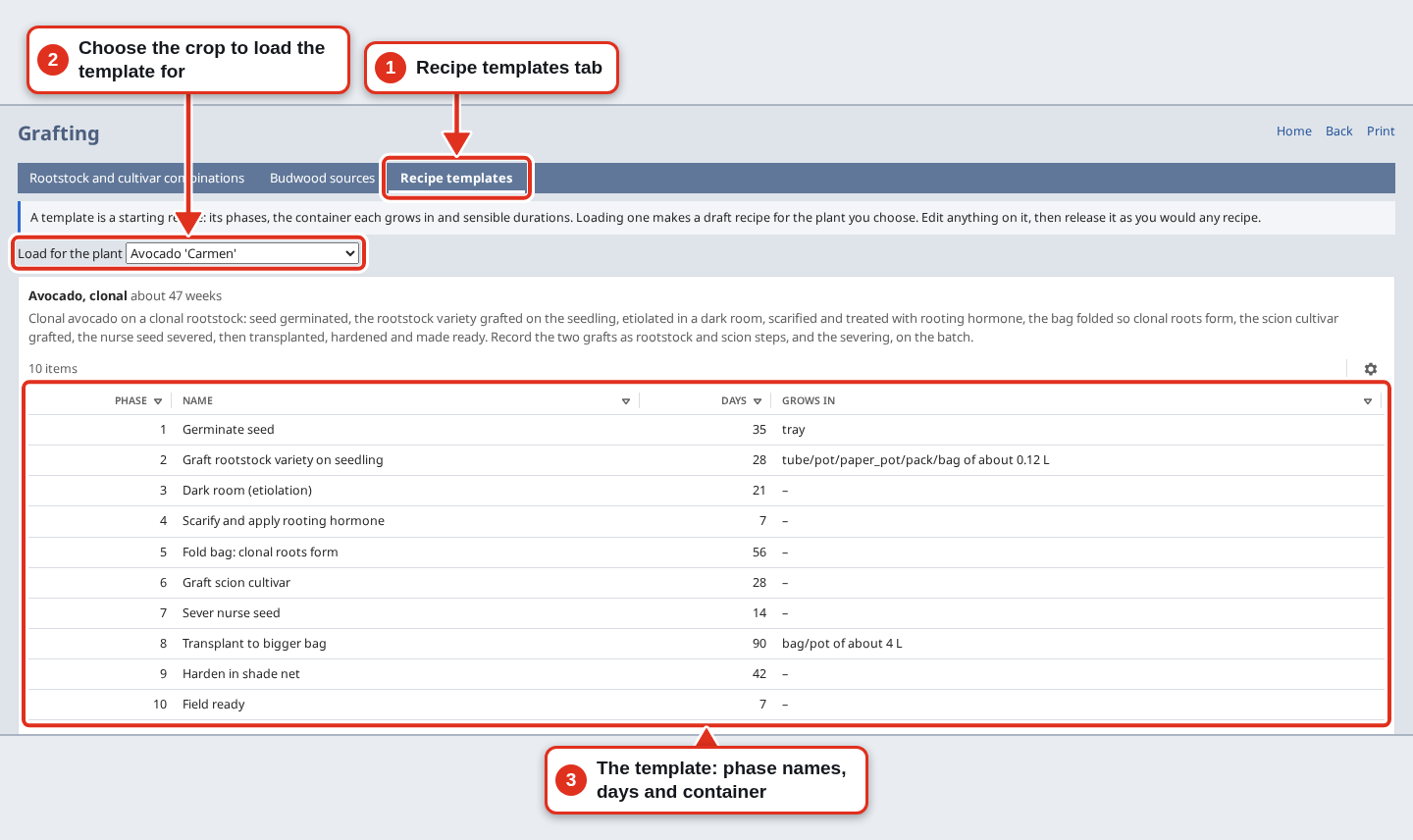
- 1Open the Recipe templates tab under Grafting.
- 2Load for the plant: choose the crop, then use the Load button below the template.
- 3The template's phase names, days, and the container each phase grows in.
Copy an existing profile
There are two different copy buttons, so know which one you press:
- The copy icon on the list starts a new draft version of the same profile, copied from the Active version. It is the same as Unlock for editing.
- The copy icon on a profile's own screen (next to Back) makes a new, separate profile whose code is the old code plus
-COPYand whose name ends “(copy)”. Use it to start a similar recipe for another crop; then you cannot change its crop, so pick the right source. Confidentiality and effective dates are not carried over silently.
You can also use Import, Export & Repository to move a recipe between nurseries.
Export File
Export File saves the Active version as a file (a “snapshot”). It is only available once a version is Active. Publish to Repository is not available in this setup.
OperoNMS demo guide. Every name, code and figure in the pictures is invented for training.