Module guide: Production Profiles
Versions, read-only and who may edit
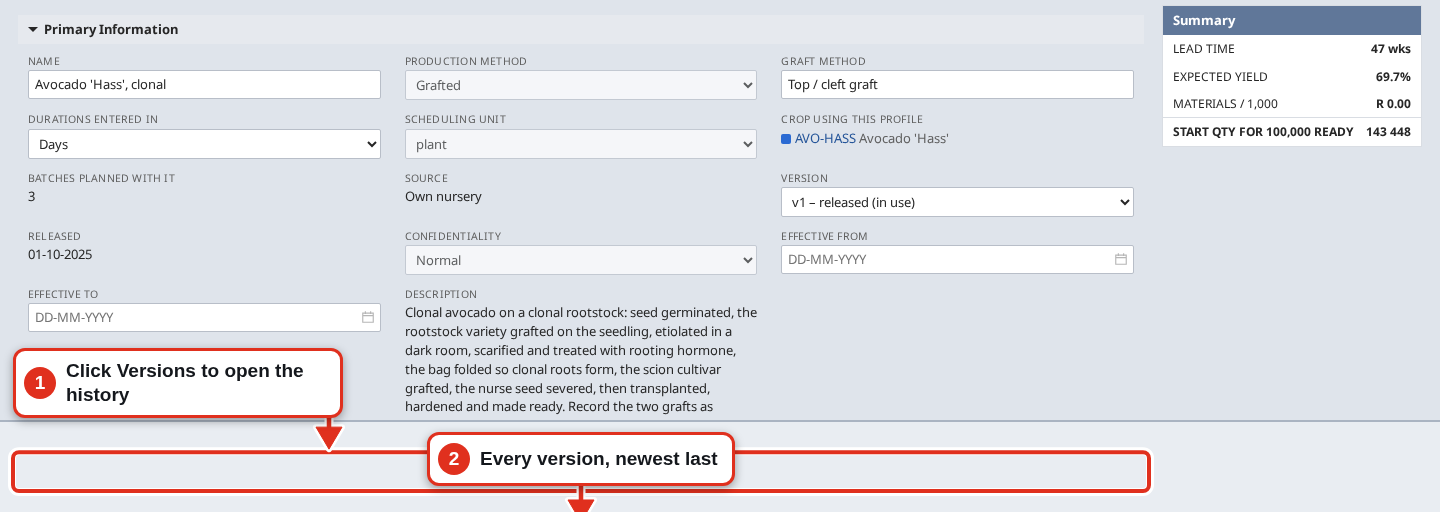
The Versions section
- 1Click Versions to open the history.
- 2Every version, with its status, release date and reason (typed on the Grower's Notes tab).
Statuses you will meet: draft, released (in use), superseded (replaced by a newer Active version) and retired. Click a version number to look at it.
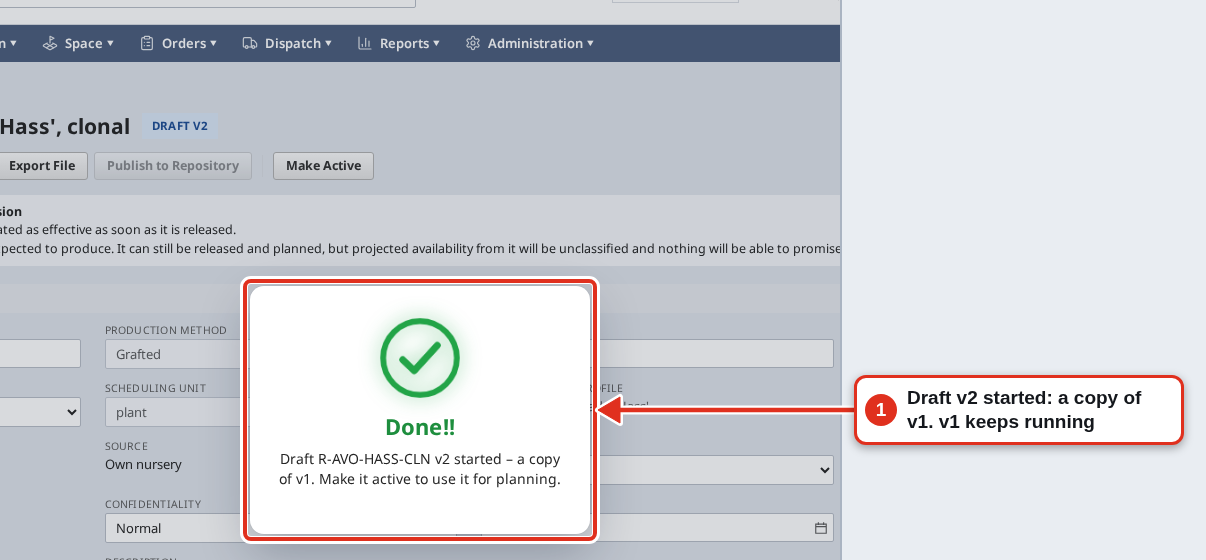
Unlocking an Active profile
- 1Unlock for editing starts draft v2 as a copy of v1. Version 1 keeps running.
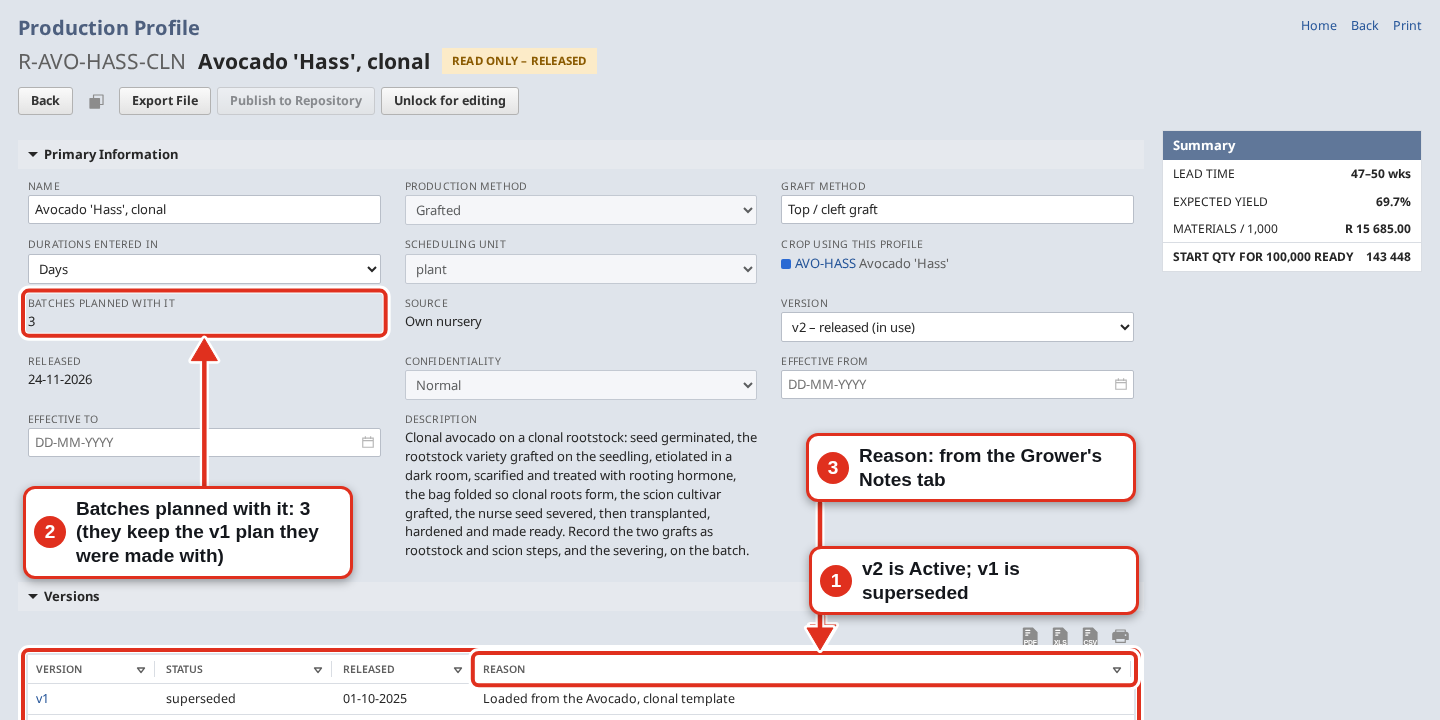
After the draft was made Active
- 1v2 is Active; v1 is superseded.
- 2Batches planned with it: 3. They keep the v1 plan they were made with. A new version only affects new plans.
- 3The reason comes from the Grower's Notes tab.
Two people editing at once
Every save carries the version's revision number. If somebody else saved the same draft while you had it open, your change is refused and the screen re-reads the draft, so nothing is silently overwritten: you simply make your change again.
OperoNMS demo guide. Every name, code and figure in the pictures is invented for training.