Module guide: Production Profiles
Step 2 · The Production Profiles list
Everything on the screen where you start.
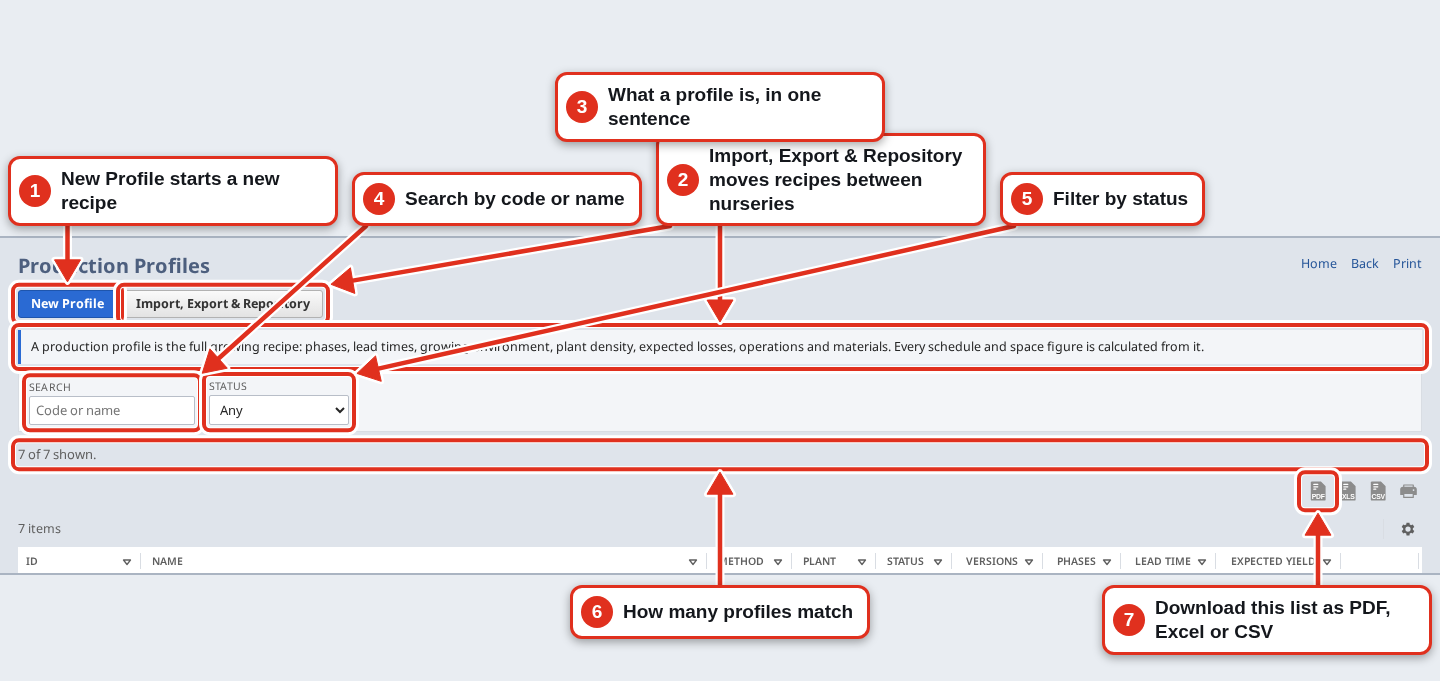
The top of the list
- 1New Profile opens the form that starts a new recipe. You only see it if you have the write permission.
- 2Import, Export & Repository opens a page for moving recipes between nurseries in a group.
- 3A one-sentence reminder of what a profile is.
- 4Search: type part of a code or a name.
- 5Status filter: Any, Active or draft, or Retired.
- 6How many profiles match, for example “7 of 7 shown”.
- 7Download the list as PDF, Excel or CSV, exactly as filtered.
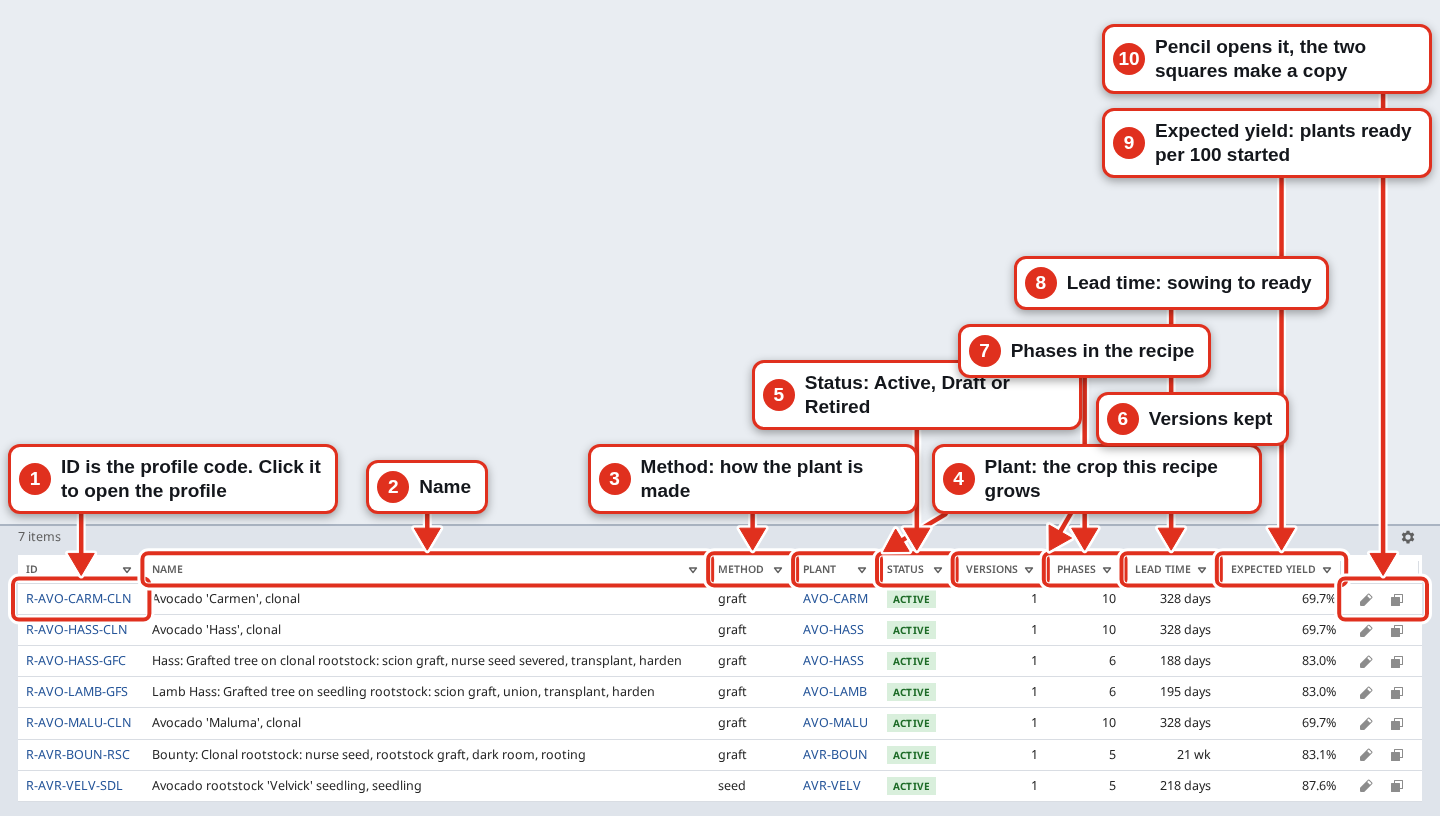
The columns of the list
- 1ID is the profile's code. Click it to open the profile.
- 2Name.
- 3Method: how the plant is made (graft, seed and so on).
- 4Plant: the crop this recipe grows. Click to open the crop.
- 5Status: Active (green) has a version being used for planning; Draft has none yet; Retired is switched off.
- 6Versions: how many versions have been saved.
- 7Phases: how many phases the version in use has.
- 8Lead time: sowing to ready, in weeks or days, from the phases' base durations.
- 9Expected yield: the share of plants started that are expected to be ready (every phase's loss multiplied together). It reads “no active version” if nothing has been released.
- 10The pencil opens the profile. The two squares start a copy: on this list it makes a new draft version of the same profile.
Small differences you may notice. The Method column shows the system's word (for example
graft, seed, stock_plant) rather than the label used on the form. And Lead time here uses each phase's base duration, so a profile with seasonal changes shows a single number here but a range (for example 47–50 wks) in the profile's own Summary box.Try it
OperoNMS demo guide. Every name, code and figure in the pictures is invented for training.