Module guide: Production Profiles
The top of the record
We open R-AVO-HASS-CLN: Hass clonal avocado, 10 phases, 3 batches planned.
From the list, click the code (or the pencil). Here is the top of an Active profile as a nursery manager sees it.
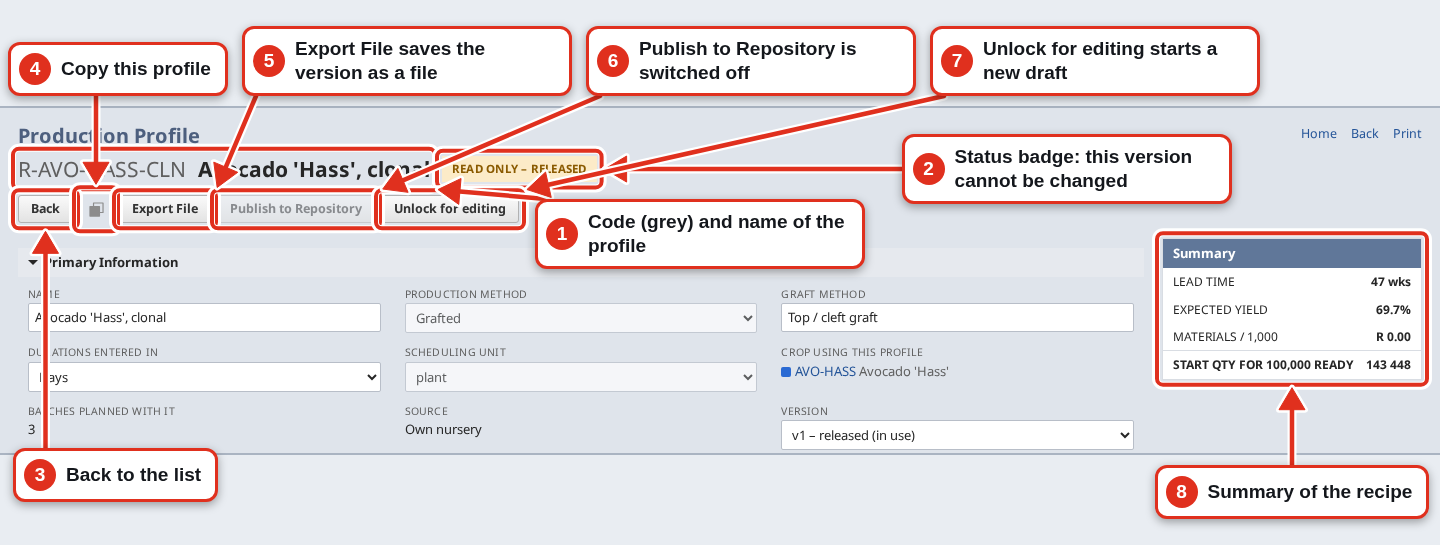
Header, buttons and Summary
- 1Code and name. The code is grey, the name is bold.
- 2Status badge. “Read only – released” means this version is Active and locked. A draft shows Draft v2. A person without write access sees “Read only” on a draft too. Restricted appears here if the version is confidential.
- 3Back to the list.
- 4Copy: makes a new profile from this one (code + “-COPY”). Only if you may write.
- 5Export File: saves the Active version as a file.
- 6Publish to Repository: not available in this setup. Assign to Plant Group… on a draft is not available either.
- 7Unlock for editing: starts (or opens) the draft you may edit. On a draft, this button is replaced by Make Active.
- 8Summary: lead time, expected yield, materials cost per 1,000 plants and “start quantity for 100,000 ready”, recalculated whenever you change a phase.
What each Summary figure means
| Figure | Meaning |
|---|---|
| Lead time | Total weeks from start to ready. If seasonal changes make it depend on the start month it shows a range, such as 47–50 wks. |
| Expected yield | All the phases' (1 − Loss %) multiplied together. Hass clonal: 69.7%. |
| Materials / 1,000 | Cost of all materials for 1,000 plants (quantity × unit cost). It reads “not fully priced” if a material has no cost. |
| Start qty for 100,000 ready | 100,000 ÷ expected yield, rounded up: how many plants to start to end with 100,000. For a profile with a Harvest phase this row shows output per plant instead. |
OperoNMS demo guide. Every name, code and figure in the pictures is invented for training.